Login and Home page
To use the database, you need to login first.
The first pictures shows the login page. You need to input your forename and surname. Note that only English case letters are allowed, other languages and special characters are not allowed. Then click the 'login' button.
Once you submit your login information, the page jumps to the database welcome page (shows in the second ficture).
And then you can click on the red text or "Home'" in the page navigation bar to go to the homepage.
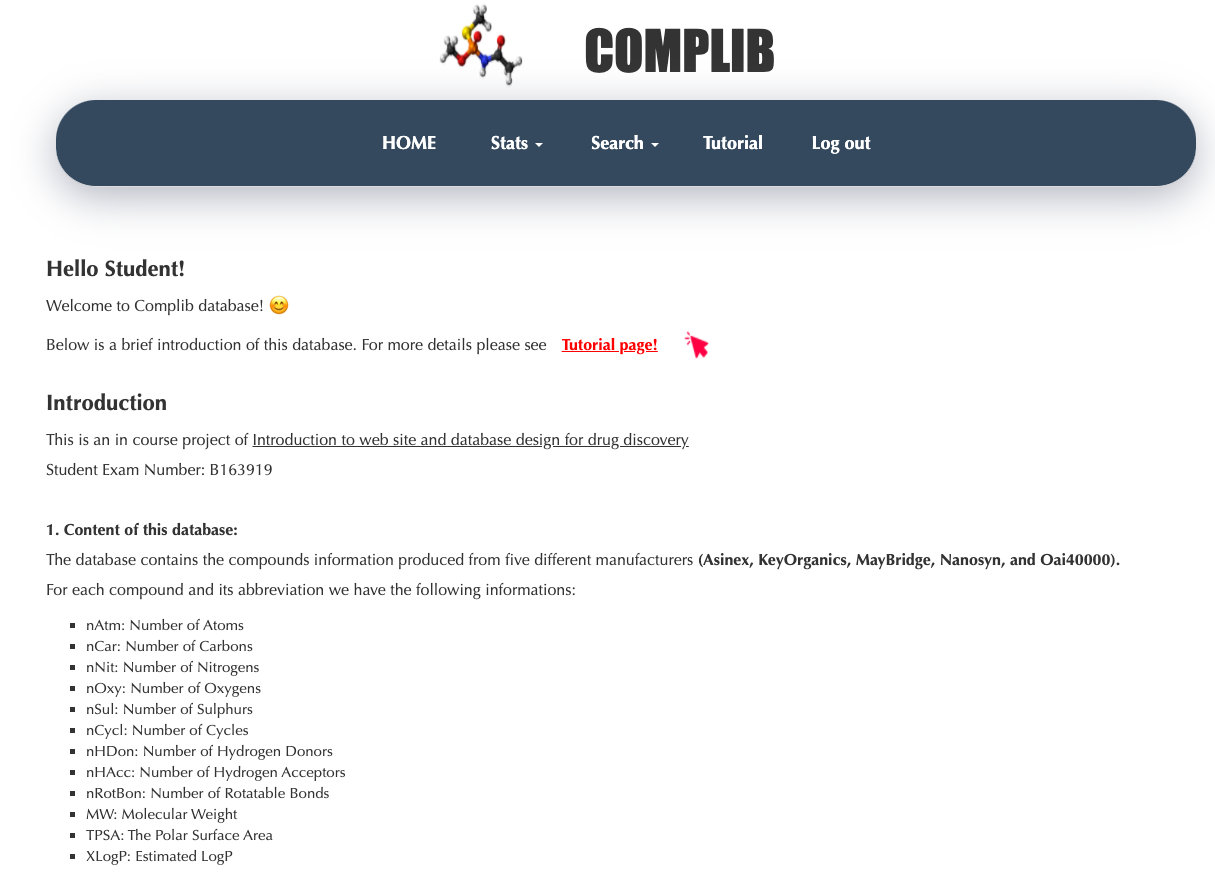
Brief information about the database is displayed on the home page.
Go back to Database
Fig1. Login page
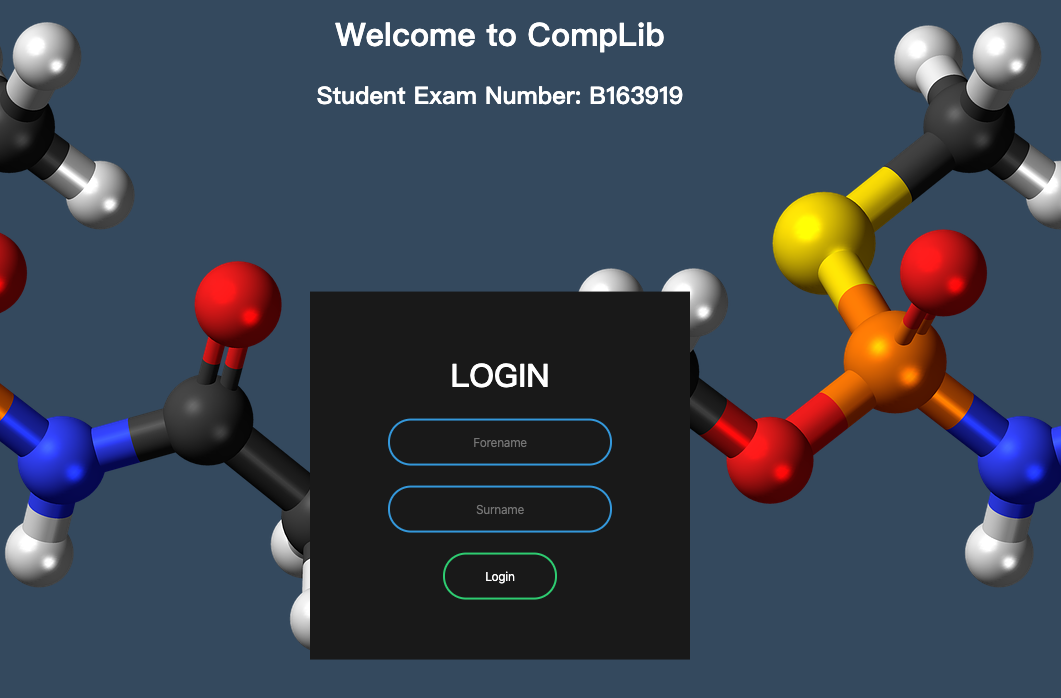
Fig2. Welcome page
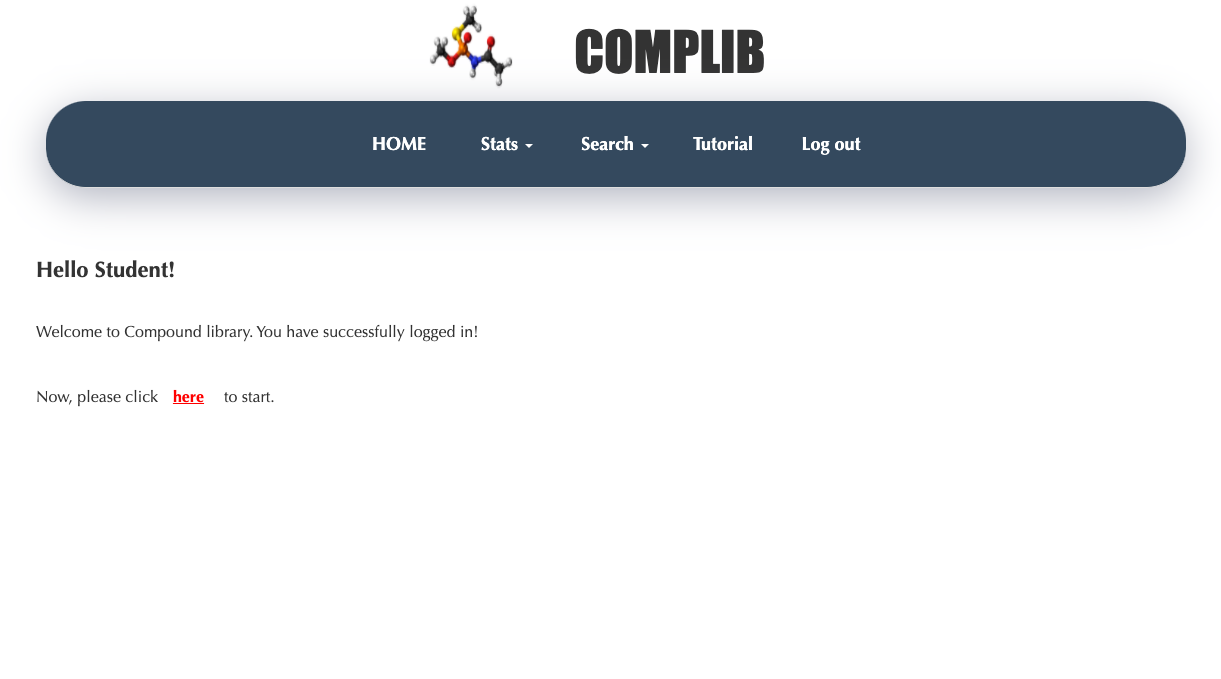
Fig3. Home page
Stats by Manufacturers
All the compounds in the database is from five different manufacturers. And for each compound it has 12 basic features.
This tool provides a wat to demostrate compounds overall features by manufacturers classification.
You need to choose feature statistics from which one or several manufacturer you want to dispaly.
Go back to Database
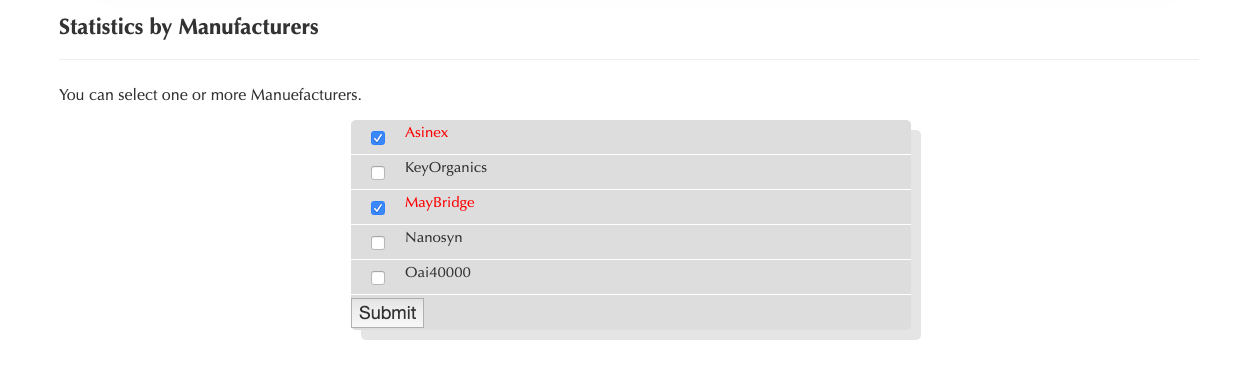
Fig1. Select Manufacturers.
Then click the 'Submit' button. The results will displayed right below.
Go back to Database
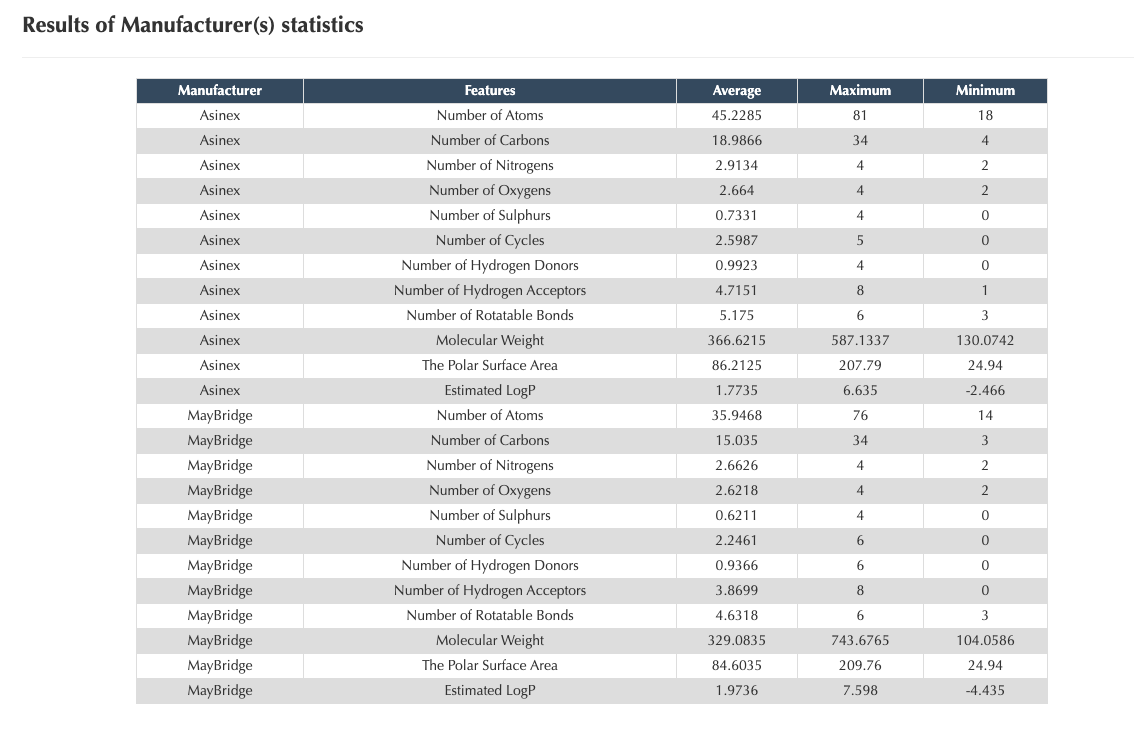
Fig2. Statistics results of compounds features for each manufacturer.
Stats by Features
All the compounds from five manufacturers are used to calculate the statistic of 12 features. For this part you can have a overview of the whole database.
Go back to Database
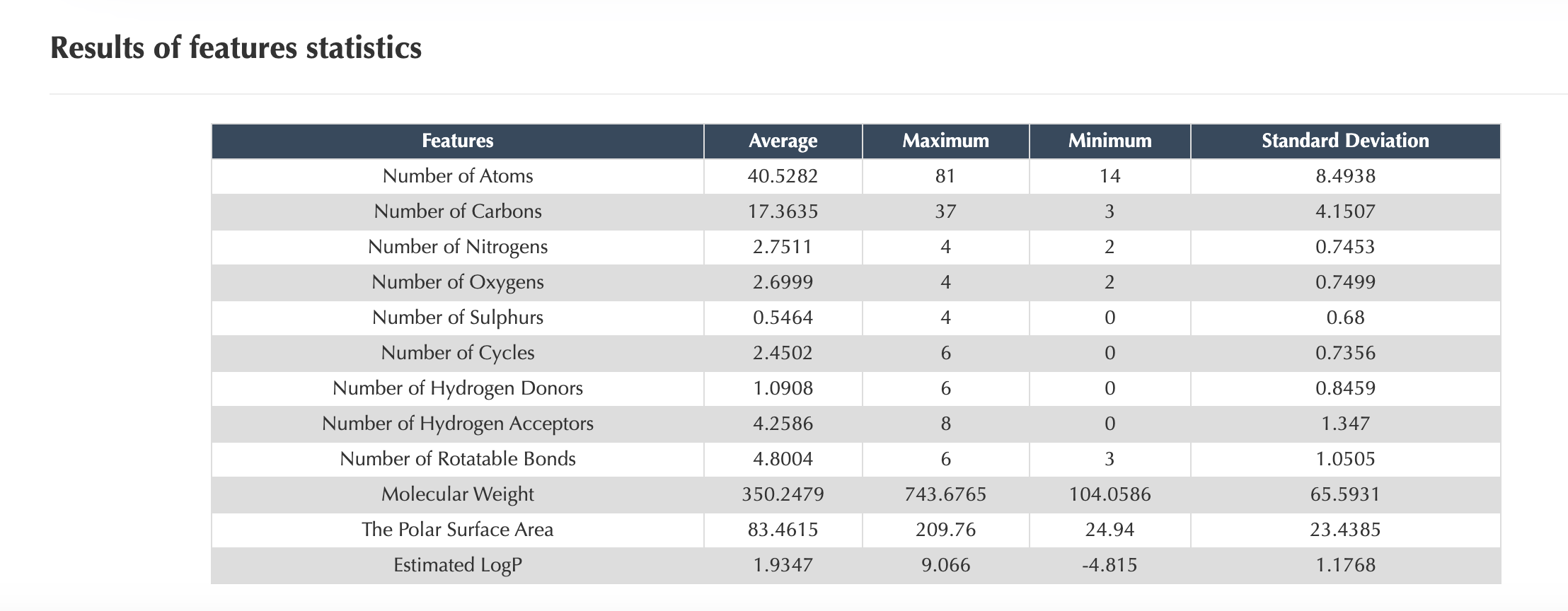
Fig1. Statistics results of compounds features over the whole database.
Stats by Correlation
Here we provide a method to see the correlation between two features.
Data from all compounds based on the sepecific one or more manufacturers are used to calculate the correlation.
Step 1 is to select the manufacturers you want to use, and click the 'Submit' button. All the five manufacturers are used by default.
Go back to Database

Fig1. Select Manufacturers to use.
The selected manufacturers are marked in red in the text line.
Step 2 is to choose 2 features. The features' name and their abbriviations are given in the left gray box.
Then click the 'Submit' button. And the result will be shown.
Go back to Database
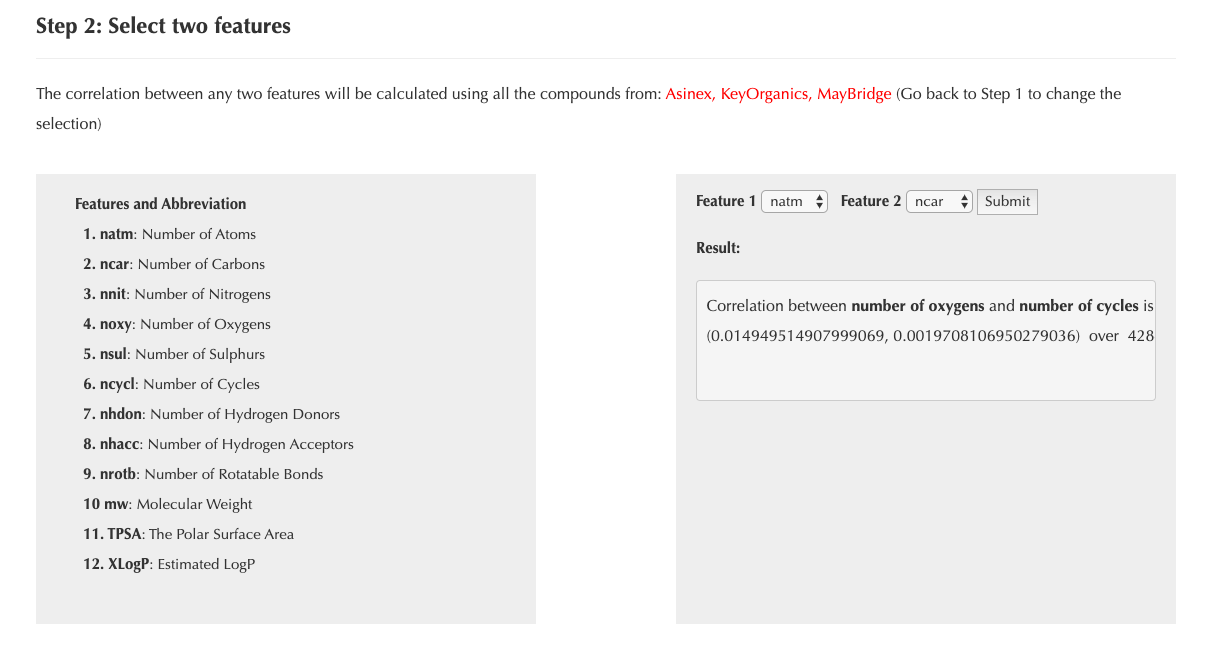
Fig2. Select two features and get the correlation result.
Search by Compounds Stats range
Here we provide a way to search compunds which are satisfied the feature statistic ranges given by the user.
The fisrt step is to choose manufacturers, and click the 'Submit' button.
All the five manufacturers are selected by default.
Go back to Database

Fig1. Select Manufacturers to use.
The selected manufacturers are marked in red in the text line.
Step 2 is to set the feature statistic range
The suitable range of each feature is given in the input box. You should be careful not to go out of range.
Having a overview of these statistics in the three 'Stats' pages are recommanded.
After setting the range, click the 'Submit' button.
Go back to Database
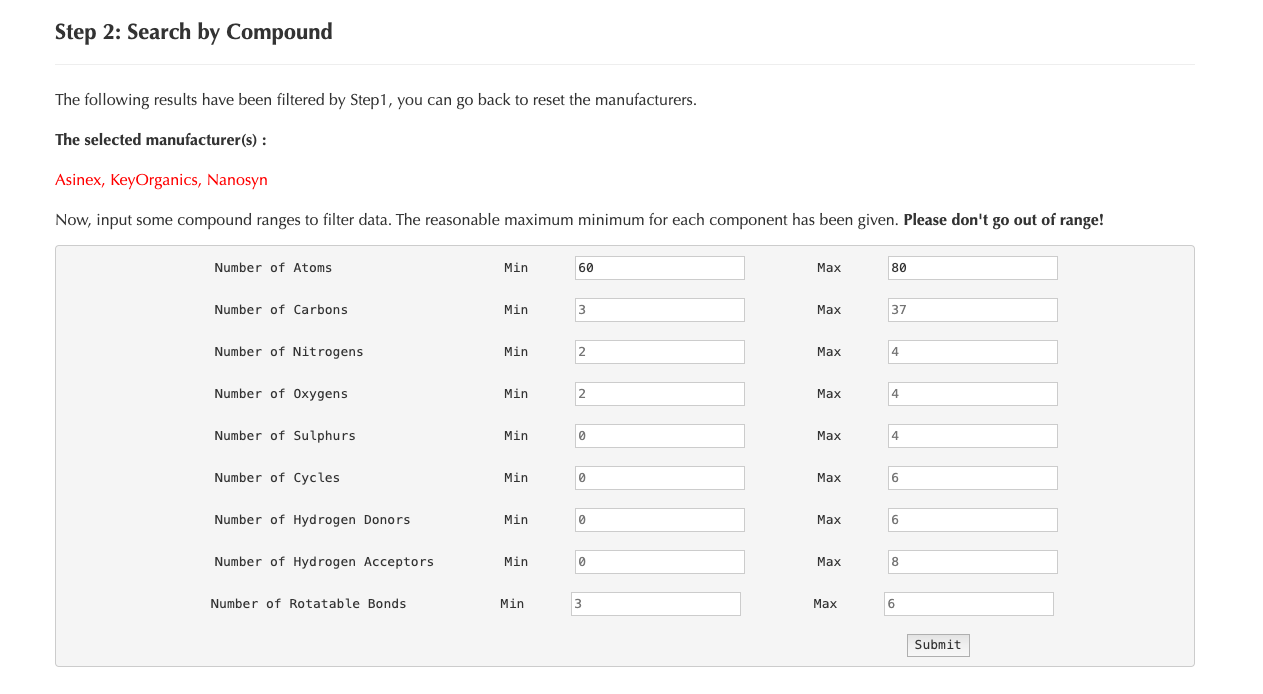
Fig2. Set the statistic range of features.
The result will be shown in a new page.
The totoal number of results will be calculated and the results will only show the first 100 pices of information of compounds.
The last colounm provides a link to show the 2D, 3D and SDF format of the compound. This display will be introduced more in the catName search page.
Go back to Database
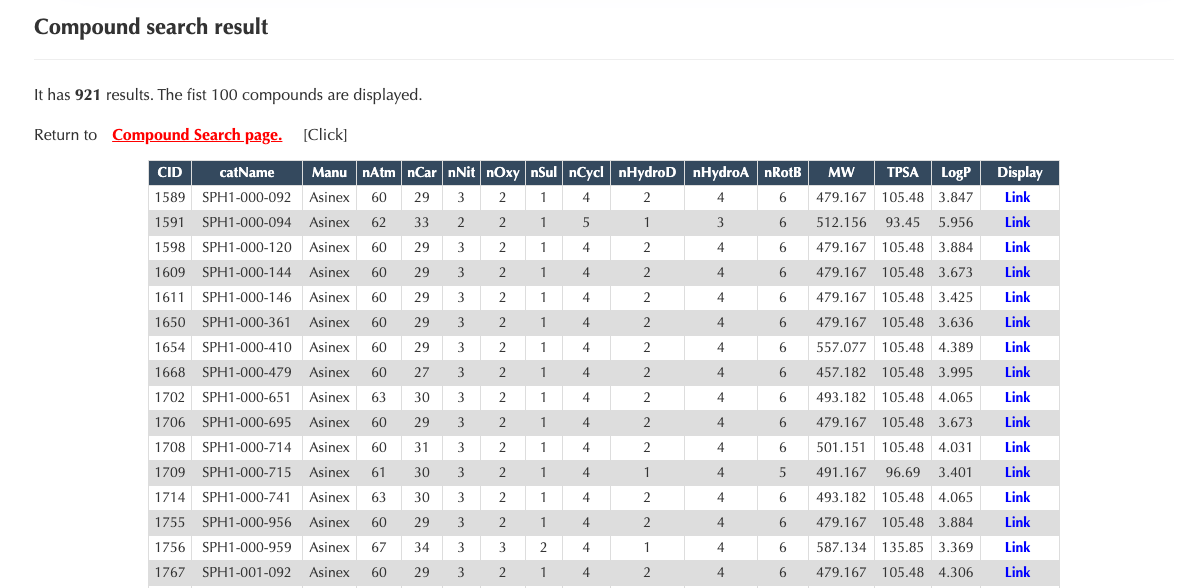
Fig3. Compound search results.
Search by Property value
The compound have three properties, molecular weight (MW), polar surface area (TPSA) and estimated LogP (XLog).
Here we provide a way to search compunds by property value.
The fisrt step is to choose manufacturers, and click the 'Submit' button.
All the five manufacturers are selected by default.
Go back to Database

Fig1. Select Manufacturers to use.
The selected manufacturers are marked in red in the text line.
Step 2 is to choose a property among the three. And set a reasonable value to filter the result.
To set a suitable value, having a overview of these statistics in the three 'Stats' pages are recommanded.
After choosing the property and setting the value, then click the 'Submit' button.
Go back to Database
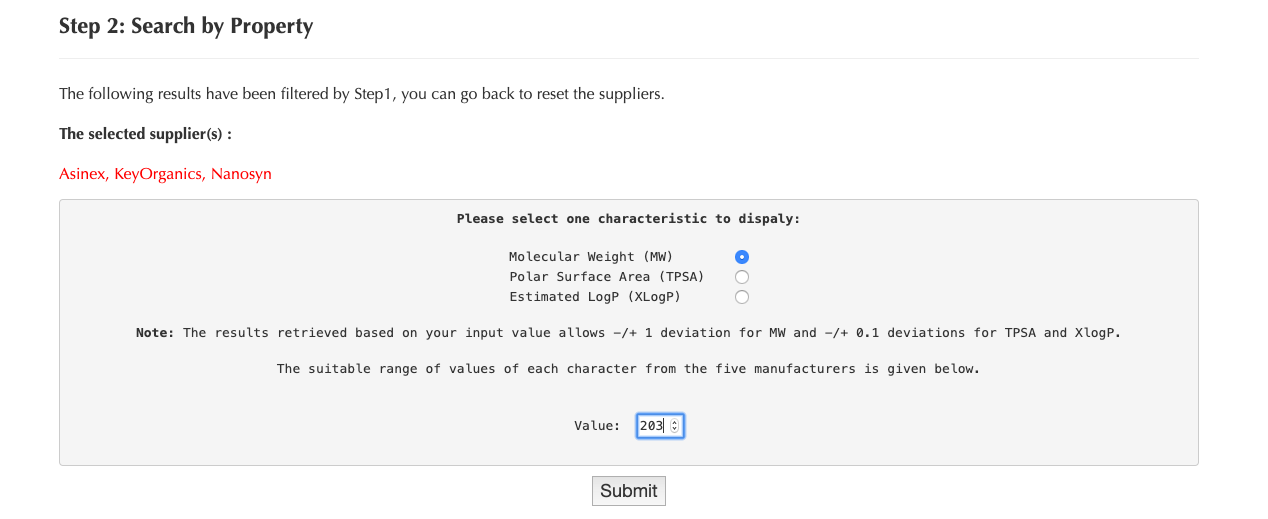
Fig2. Select a property and give a value.
The result will be shown in a new page.
The totoal number of results will be calculated and the results will only show the first 1000 pices of information of compounds.
The last colounm provides a link to show the 2D, 3D and SDF format of the compound. This display will be introduced more in the catName search page.
Go back to Database
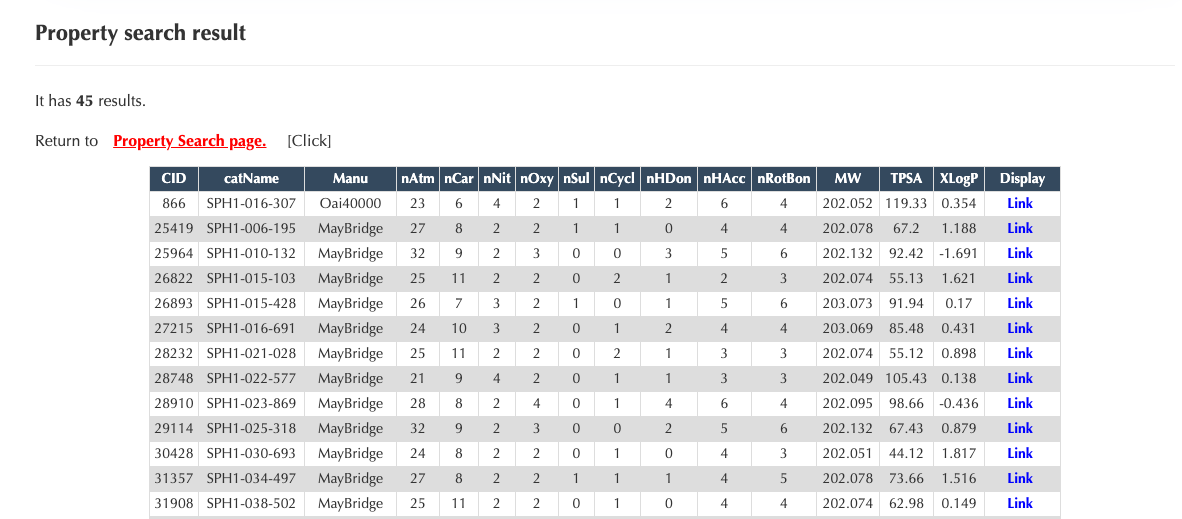
Fig3. Compound search results.
Search by Catalogue Name
Each compound have a catalogue name like SPH1-000-419. Here we provide a tool that user can search one specific compound by inputing its catalogue name in the box, and click 'Submit' button.
Go back to Database
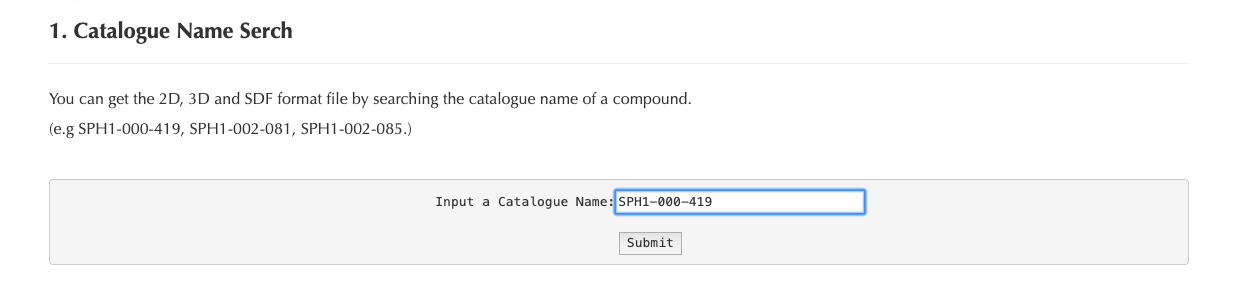
Fig1. Input a catalogue name.
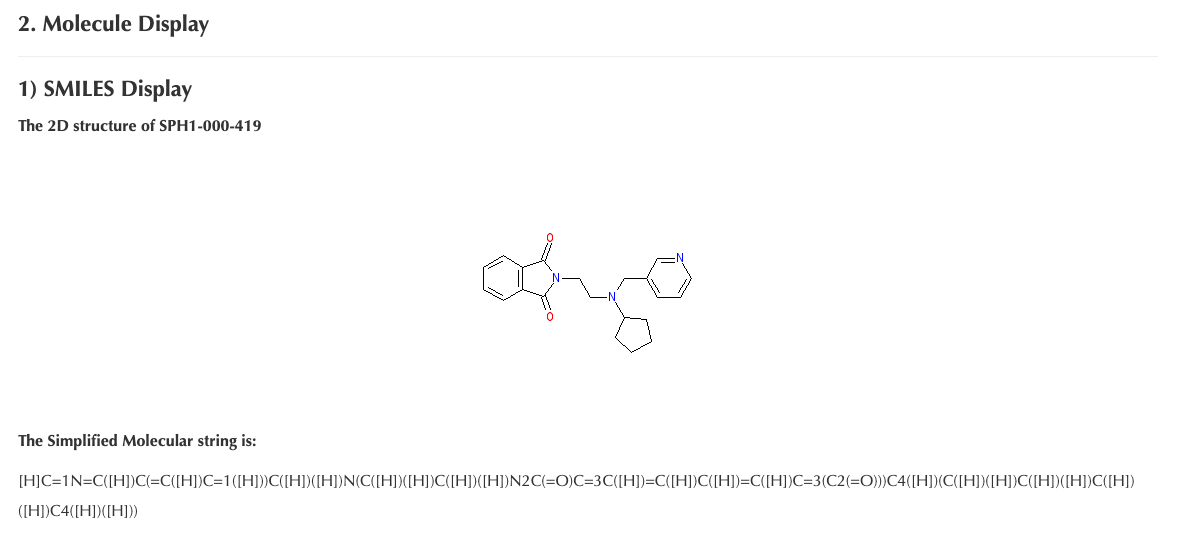
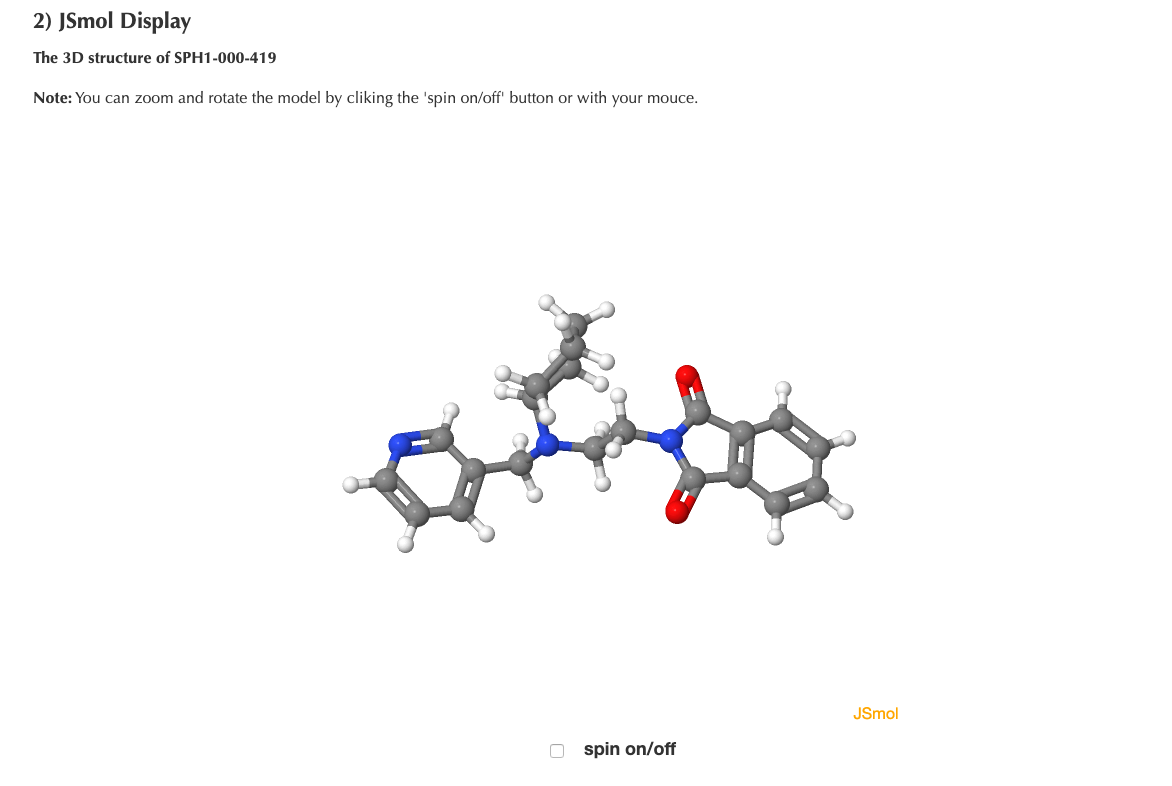
The compound is displayed in three format.
One is the 2D model along with the molecular string based on the support of SMILES (Simplified Molecular Input Line Entry System).
And the 3D model supported by JSmol. You can zoom and rotate the model by cliking the 'spin on/off' button or with your mouce.
Last, we provide the SDF format file of the corresponding compound. It holds the complete molecule coordinates information.
Go back to Database
SMILES Display
JSmol Display
SDF format
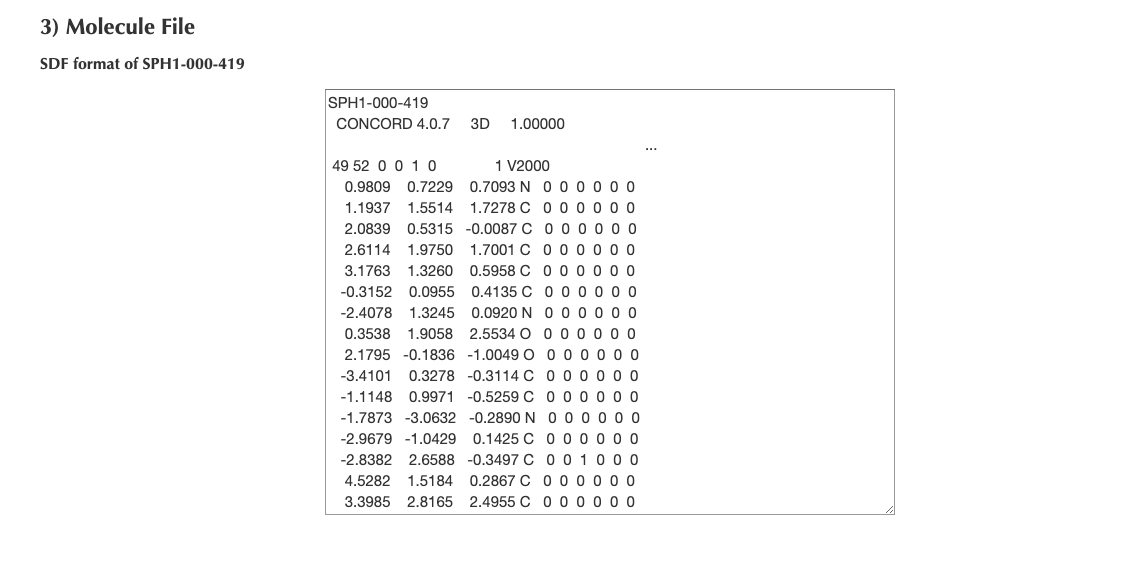
Fig2. Molecule Display.
Logout
You can exit the base by clicking the 'Logout' button, and return to the Login page to re-login the database follow the link provided.
Go back to Database